Tokyo --:--

A dot-grid visualizer for your music.

TITTLE is a Windows app that redraws sound as a grid of dots. Play a track, or use your microphone, desktop audio or a webcam as input, then save the result as an MP4 or WebM.

Windows 10 / 11 · about 5 MB · V1.0.0

TITTLETry it here

Properties

ModeOrganic
DotLED
Input

Sample plays a short clip. Mic reacts to the sound around you.

There is a free LITE edition. See plans

The window

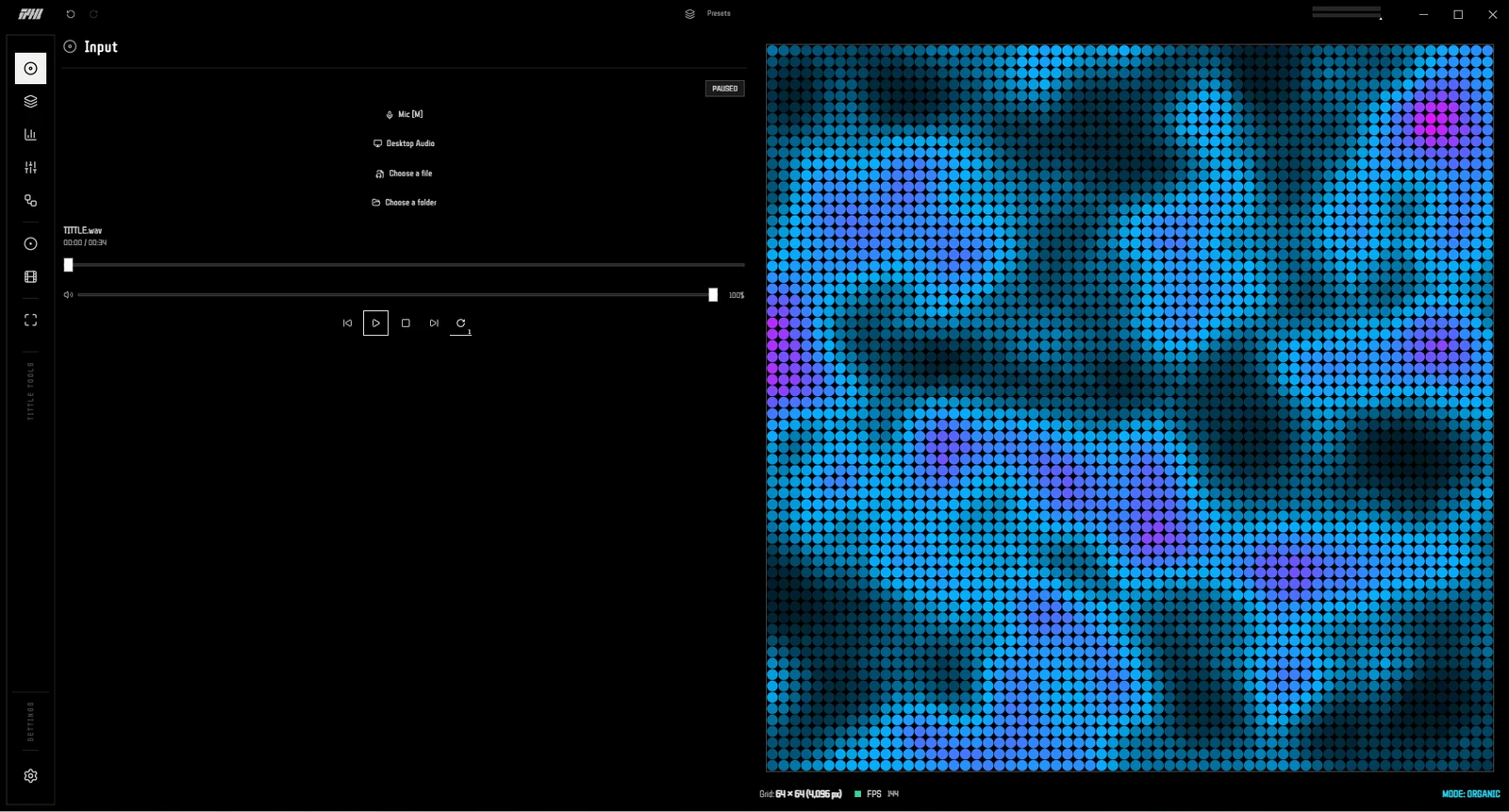
Dark and light themes, in Japanese and English. Drag the line to compare.
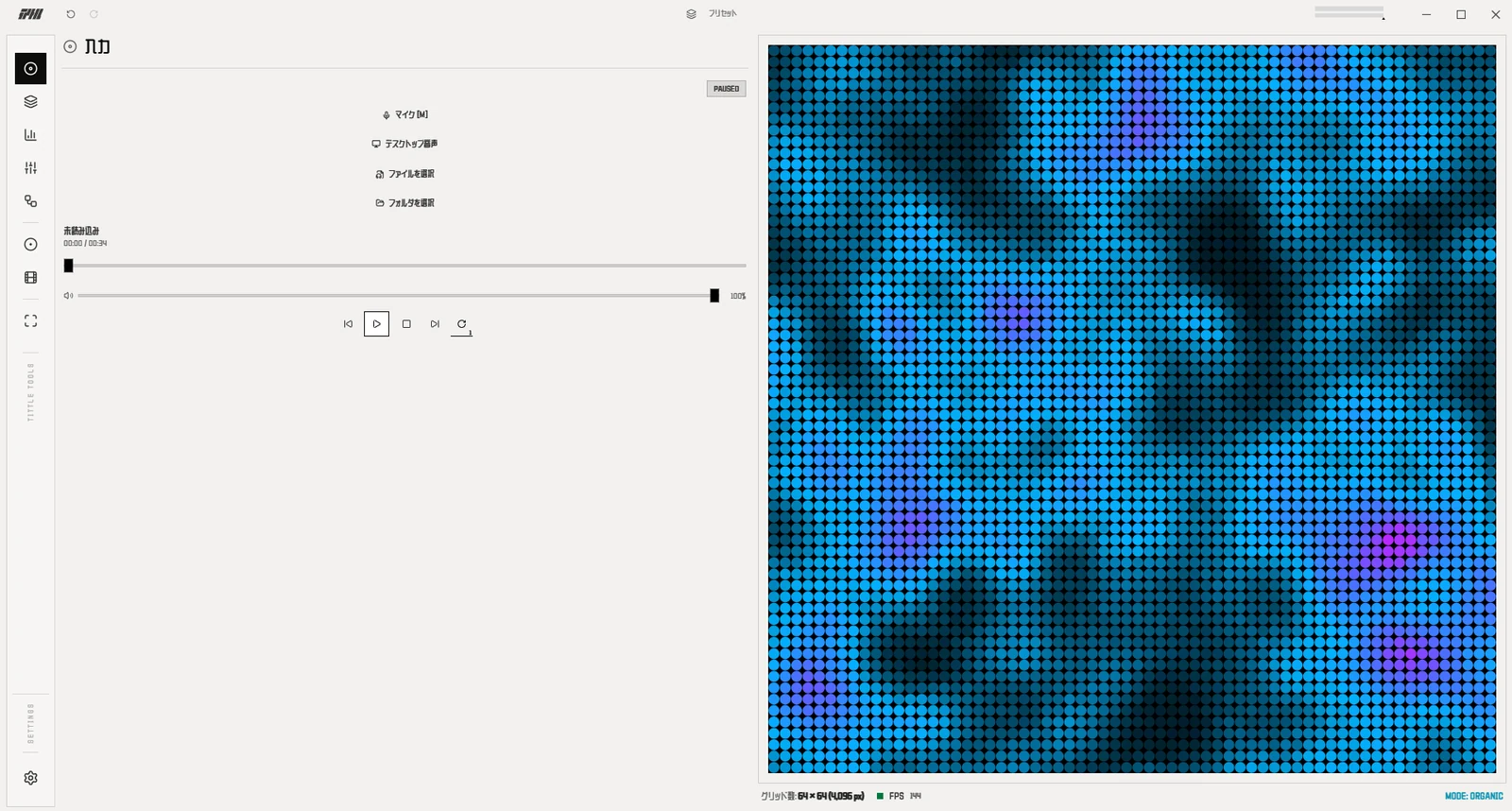
TITTLE main window in the light theme
TITTLE main window in the dark theme
DARKLIGHT

Seven tabs

Input
Audio files, folders, mic, desktop audio, webcam, images and GIFs.
Modes & color
Ten modes, four dot styles, color themes, custom gradients.
Audio analysis
Level, noise gate, frequency range and crossover, with a live analyzer.
Parameters
Speed, scale, flicker, trails, grid density, plus each mode’s own controls.
Assign
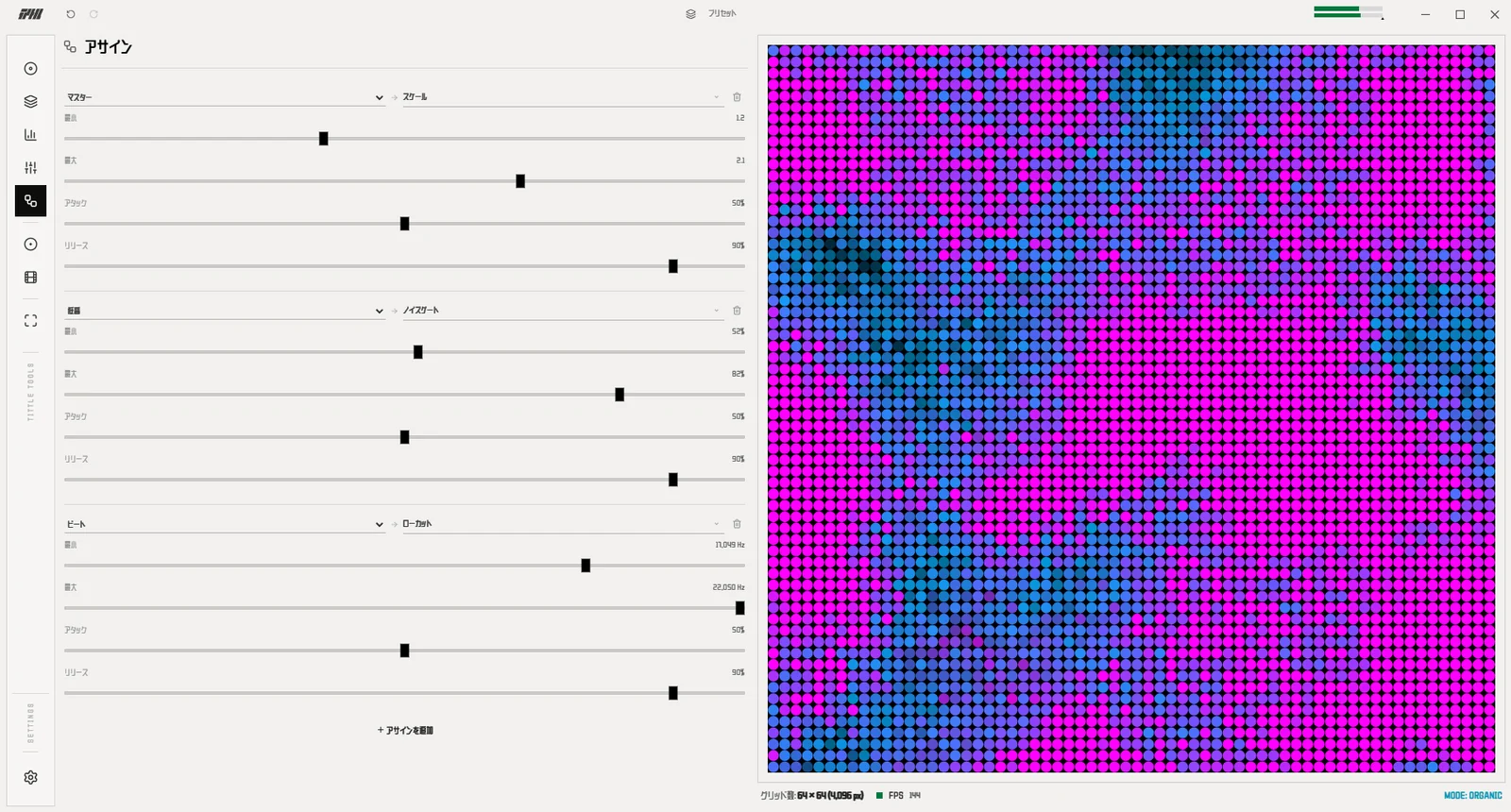
Wire bass, mid, treble, master or beat to any parameter.
Record
Capture the screen to WebM with the R key.
Export
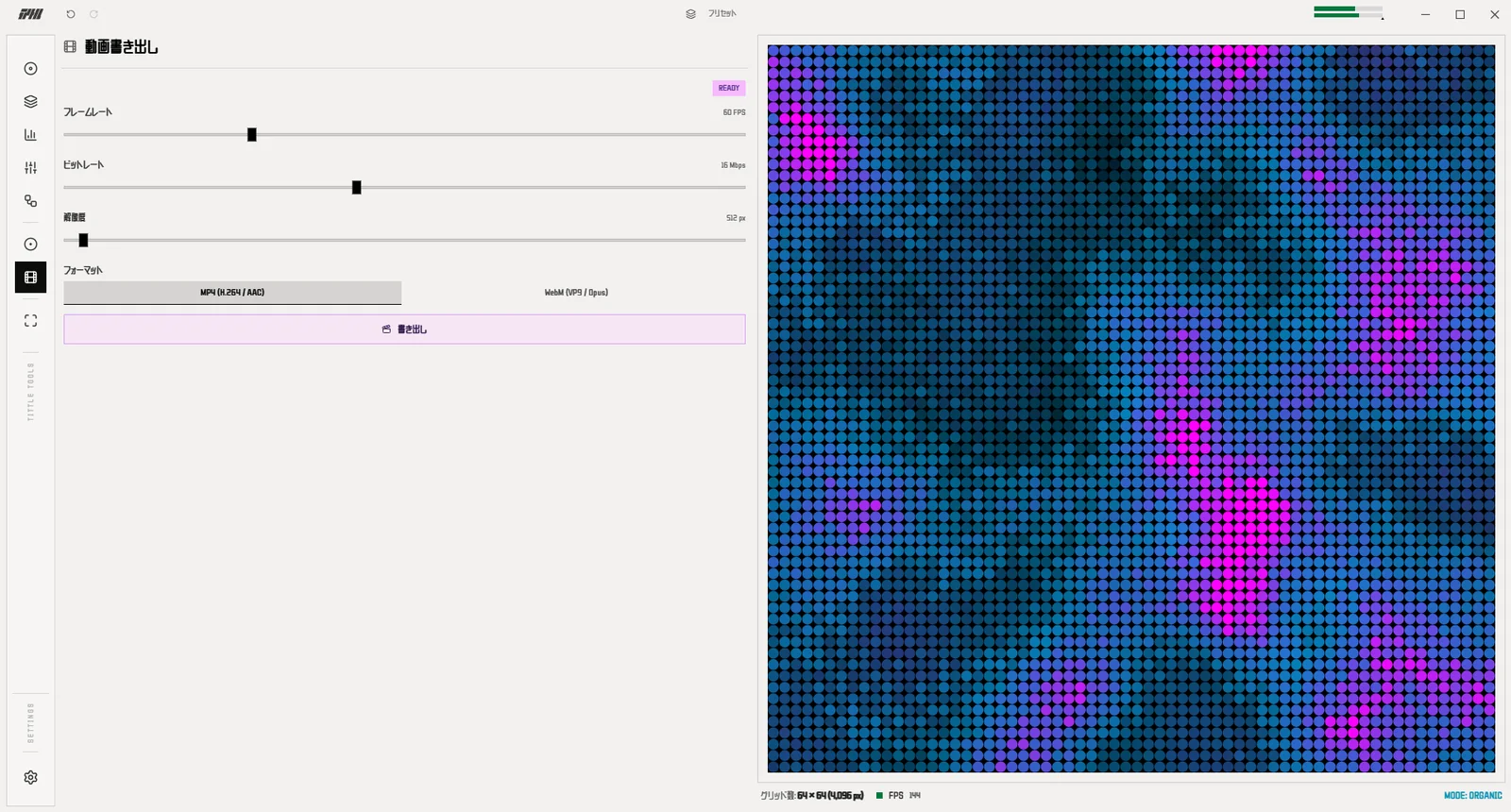
Render audio-synced MP4 or WebM, frame by frame.
10Modes
4Dot styles
256Max grid (256 × 256)
140Max export FPS

Three steps

01

Bring in sound

Drop in audio files or a folder, or pick a mic, desktop audio, a webcam or an image.

02

Shape the look

Choose a mode, a dot style and a color theme, then fine-tune with sliders.

03

Keep it, or export it

Save the look as a preset, record the screen, or render an audio-synced MP4 or WebM.

What's inside

01

Dot-grid rendering

Four dot shapes: pixel, LED, glow and matrix. The same grid, and the sound takes on a completely different look.

02

Flexible input

Playlist, microphone, desktop audio, webcam, images and GIFs. Switch sources on the fly with the M, C and I keys.

03

Video export

Render to MP4 or WebM, in sync with the audio, ready to share or drop into an edit.

04

Presets

Save and load your looks as .tvp files. Keep one per track, per mood or per project.

05

Color and transparency

Set dot and background colors freely, or go fully transparent when you want the dots on their own.

06

JA / EN interface

Switch between Japanese and English at any time. A light mode is included too.

07

Desktop audio

Anything your PC plays can drive the dots. Capture what your speakers play, with no share dialog. Pick a whole device or a single app (per-app needs Windows 11, or Windows 10 build 20348 or later).

08

Reaction channel

Drive the visuals from L, R or both. Handy for hearing, and seeing, what each side is doing. Applies to playback, live input and export.

09

Undo and redo

Experiment freely. Step back and forward through your changes with Ctrl+Z and Ctrl+Y.

Full feature list

Everything below is in the app today. The LITE and FULL editions are compared under Plans.

Display

  • Four dot shapes: pixel, LED, glow, matrix
  • Ten modes, switched with the 1 to 0 keys
  • Color themes and custom gradients
  • Transparent background

Input

  • Audio files and folders, with a playlist
  • Microphone input
  • Desktop audio, per device or per app
  • Webcam, image and GIF input

Analysis

  • React to L, R or both channels
  • Frequency range and crossover
  • Noise gate, overall or per band
  • Beat flash with threshold and strength
  • Assign bass, mid, treble, master or beat to any parameter

Save & export

  • Presets saved as .tvp files
  • Screen recording to WebM (R key)
  • MP4 / WebM export, synced to the audio

Controls & settings

  • Undo and redo with Ctrl+Z / Ctrl+Y
  • Japanese and English, dark and light

Four dot styles

Each style has its own controls.

Pixel dot style

Pixel

Hard-edged square dots. Size from 20 to 100%.

LED dot style

LED

Glowing LED-like points, with an optional size cap.

Glow dot style

Glow

Soft, bleeding light. Blur from 0 to 6 px.

Matrix (character) dot style

Matrix

Dots become characters: letters, digits, symbols, katakana, hiragana or your own.

Ten modes

Switch with the 1 to 0 keys while the music plays.

Organic mode

1Organic

Undulating organic patterns. Contrast and detail.
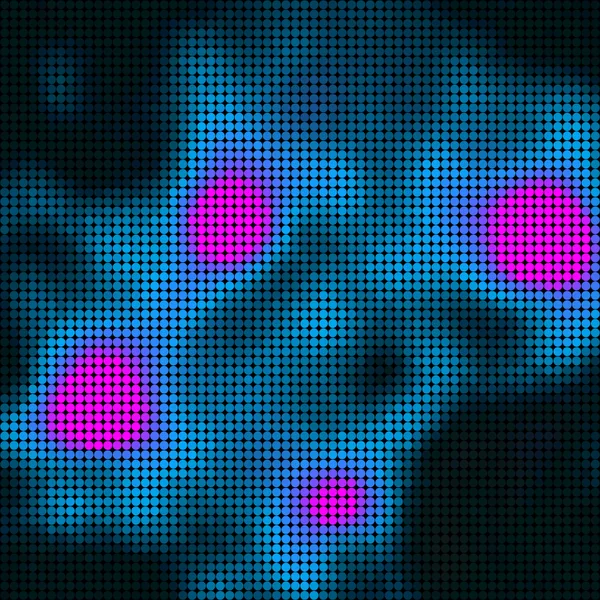
Metaballs mode

2Metaballs

Blobs that swell and merge. Sharpness and wobble.

Quantum mode

3Quantum

Waves and noise interfering. Wave density and mix.
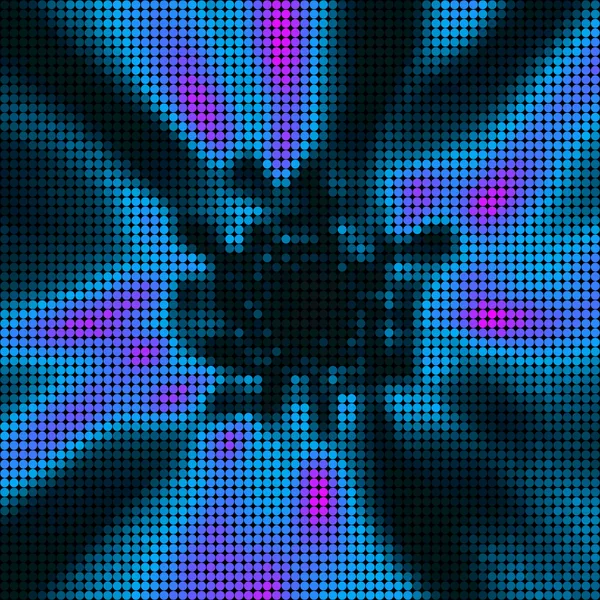
Tunnel mode

4Tunnel

Rings receding into depth. Reverse the speed to fly backwards.
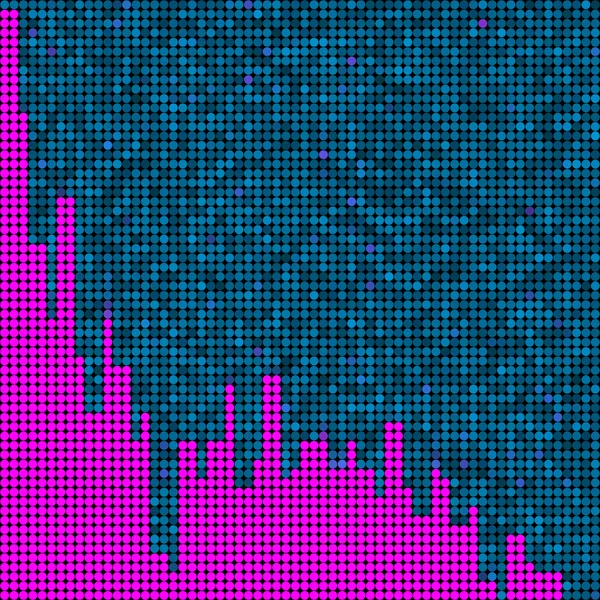
Spec Bar mode

5Spec Bar

Classic spectrum bars. Tip glow and curve.
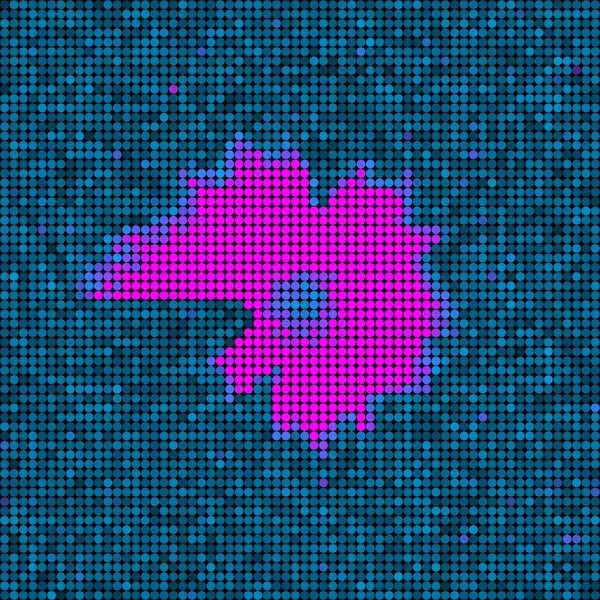
Spec Circle mode

6Spec Circle

A circular spectrum. Inner hole, ring width, direction.

Waterfall mode

7Waterfall

The spectrum flowing down over time. Bass boost.
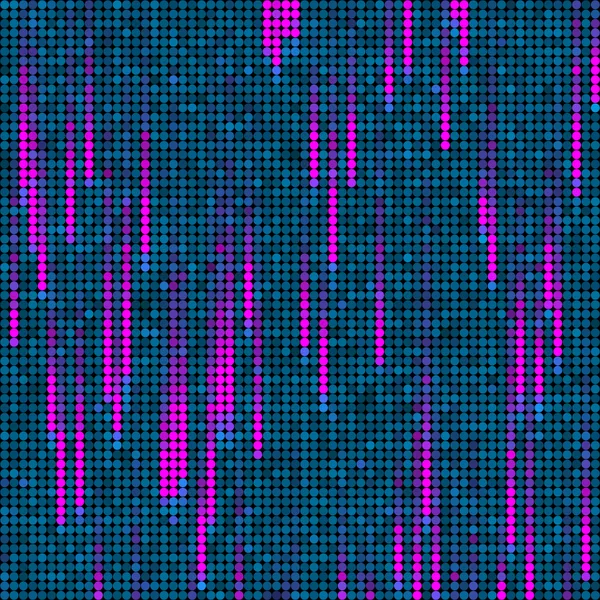
Rain mode

8Rain

Falling drops. Drop length and fade.

Fluid Core mode

9Fluid Core

A core that bursts on the beat. Gravity and spin.

Radial Spin mode

0Radial Spin

Particles that fly out and spring back.

Set how it listens

Narrow the band, split lows from highs, and choose what each part of the sound moves.
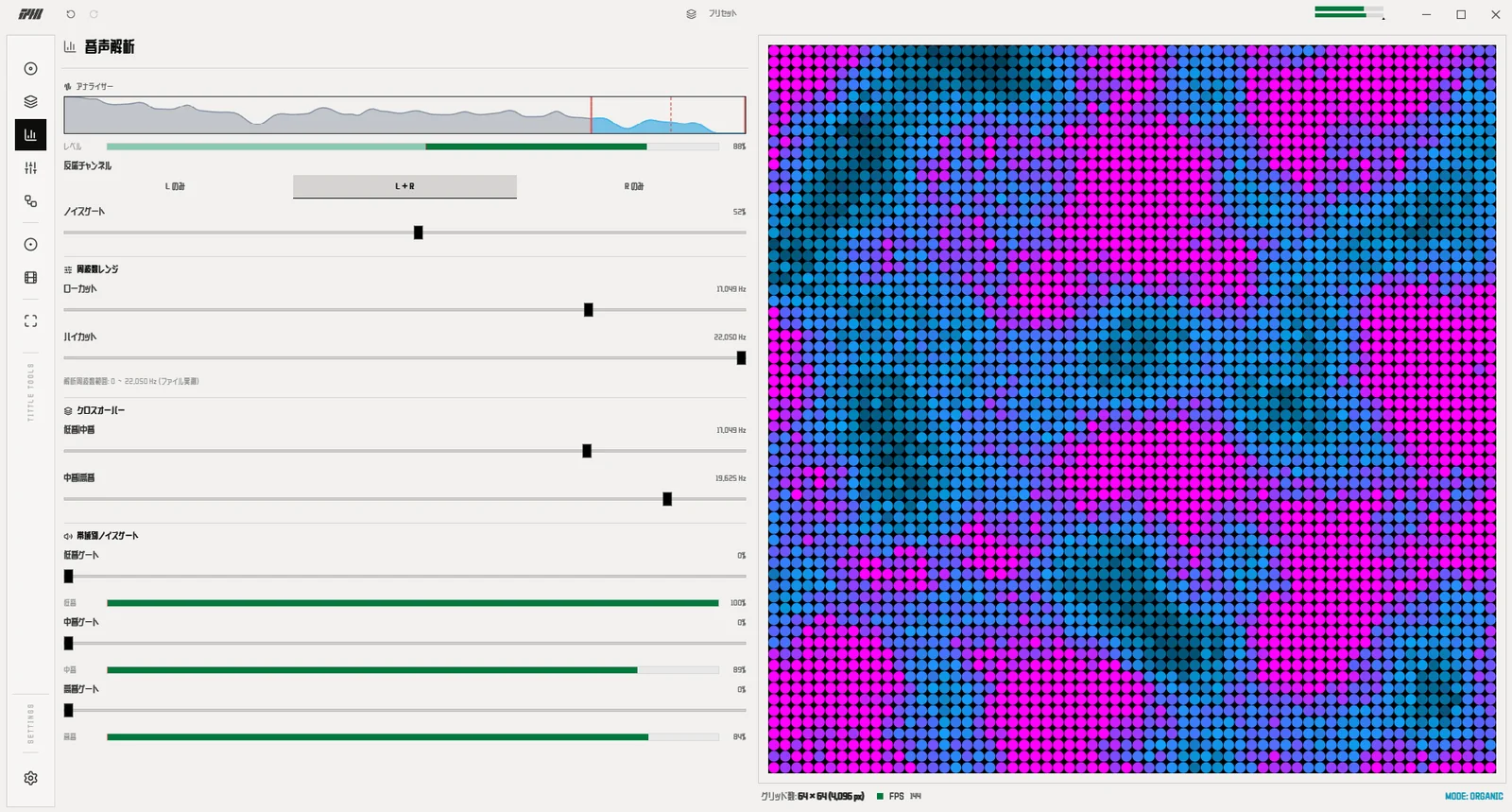
Frequency rangeLow-cut and high-cut narrow the band that drives the visuals.
CrossoverSet where bass, mid and treble split.
Noise gateIgnore quiet sound, overall or per band.
BeatFlash on the beat, with adjustable threshold and strength.
AssignSend master, bass, mid, treble or beat to any parameter.
Audio analysis tab: analyzer, frequency range, crossover and noise gate
Assign tab: route bass, mid, treble, master or beat to any parameter

Record and export

Capture what you see live, or render a clean video from the audio, one frame at a time.
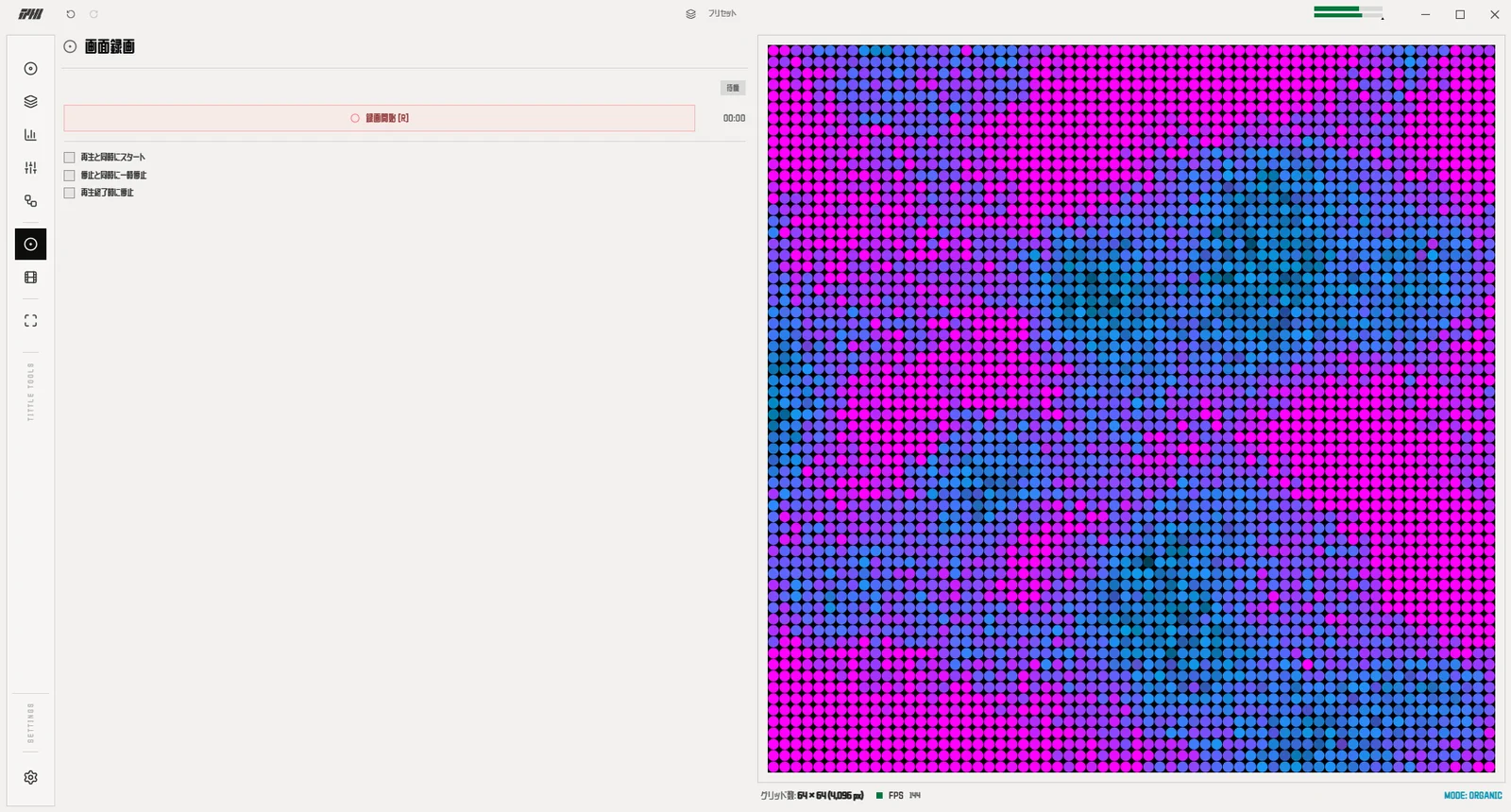
Screen recordStart and stop with R and save as WebM. It can follow playback automatically.
ExportRenders the audio from start to finish, frame by frame. Use it for a reliable finish.
Options30–140 FPS, 4–32 Mbps, 480–1920 px. MP4 (H.264 / AAC) or WebM (VP9 / Opus).
TargetOne track, the whole playlist as one video, or one video per track.
TransparencyKeep the background transparent when exporting WebM.
Record tab: screen capture to WebM
Export tab: frame-accurate MP4 or WebM render

Where it fits

Anywhere there is sound.

01

Stream overlays

Make the background transparent and export WebM with alpha. Layer it over a stream or a video.

02

Live and DJ visuals

Feed it a mic or desktop audio and show the dots full screen behind the set.

03

Music videos and backgrounds

Render an MP4 in sync with your track and use it as a background in your editor. For paid work, choose the Commercial edition.

Plans

Start with LITE, which is free. FULL is a one-time purchase. COMMERCIAL is an add-on for paid work. Prices are in Japanese yen (JPY).

LITE

Free

Try the real app with your own sound.

  • Load and play audio files and folders
  • All ten modes and four dot styles
  • Color theme selection
  • Audio analysis controls (level, noise gate, frequency range, crossover)
  • Parameter control with sliders
Get

FULL

¥4,980 JPY

Everything, through to finished video.

  • Everything in LITE
  • Mic and desktop audio input, per device or per app
  • MP4 / WebM export (30–140 FPS, 4–32 Mbps, 480–1920 px)
  • Screen recording (save to WebM with the R key)
  • Fullscreen display
  • Custom theme color creation
  • Assign tab (route bass, mid, treble, master or beat to any parameter)
  • Preset saving and loading (.tvp)
Buy

COMMERCIAL

¥5,000 JPY

An add-on to LITE or FULL that enables commercial use.

  • Requires a LITE or FULL license (a COMMERCIAL key alone cannot run the app)
  • Add the key in Settings → License after activating LITE or FULL
  • Commercial use and editing of your videos
Buy

Windows may show a SmartScreen warning the first time you run the app. Choose “More info” → “Run anyway”. FAQ

Specs

Version
V1.0.0
Editions
FULL / LITE / COMMERCIAL
Platform
Windows 10 / 11 (.exe)
Requirements
WebView2 (included with most Windows 10 / 11 PCs)
Size
About 5 MB installer, about 10 MB installed
Language
Japanese / English
Input
Audio files, mic, desktop audio, webcam, images and GIFs
Audio files
Formats your Windows can play (anything WebView2 can decode)
Grid density
16 × 16 to 256 × 256
Export
MP4 (H.264 / AAC), WebM (VP9 / Opus)
Export settings
30–140 FPS, 4–32 Mbps, 480–1920 px. Transparent WebM supported. Playlists render as one video or one per track.
Presets
.tvp files
Author
KOLK / GRAPHD

License and privacy

License types
LITE and FULL are the base licenses. COMMERCIAL is an add-on you buy on top of them, with its own key.
Activation
Enter your license key on first launch to activate. An internet connection is required for activation.
Devices
One license covers one device. To use it on another PC, first deactivate this PC in Settings → License.
Commercial use
Requires a COMMERCIAL license. After activating LITE or FULL, add the key in Settings → License. A COMMERCIAL key alone cannot run the app. Videos you create can be used in commercial work and may be edited.
Offline use
Once activated, the app works without a network. The license is rechecked automatically from time to time; if it cannot be verified for more than 7 days, the app stops working until it can.
The app
Redistribution and modification of the app are not permitted.
Third-party
License notices for bundled libraries and fonts are included in THIRD-PARTY-NOTICES.txt, installed next to the app.
Privacy
Your audio, mic, webcam and images never leave your PC. The app only contacts the license service (Lemon Squeezy) to activate and recheck your license, sending your license key and related activation data.

Changelog

V1.0.0
First release

Questions

Can I use it commercially?

Yes, with the COMMERCIAL license (¥5,000). It is an add-on that requires a LITE or FULL license. Videos you create can be used in commercial work and may be edited.

What is the difference between LITE and the full version?

LITE is a trial edition for your own audio files. It includes loading audio files and folders, all ten modes and four dot styles, color theme selection, and audio analysis and parameter controls. The full version adds mic and desktop audio input, MP4 / WebM export, screen recording, fullscreen display, custom theme colors, Assign, and preset saving and loading.

Does it send my audio anywhere?

No. Your audio, mic, webcam and images never leave your PC. The app only contacts the license service (Lemon Squeezy) to activate and recheck your license.

No sound or no reaction

Check that playback is running, the listening volume is above 0 and the right input is selected.

Windows says it “protected your PC”

This can appear the first time you run an app. Choose “More info”, then “Run anyway” to start it.

Still stuck?

Please send us your Windows version and what happened through this form: Contact form